How to Unhide Columns in Excel: A Simple Step-by-Step Guide
Learn how to unhide columns in Excel quickly using manual methods or AI. Step-by-step guide with tips for unhiding all hidden columns in seconds.
Similar Cases
.gif)
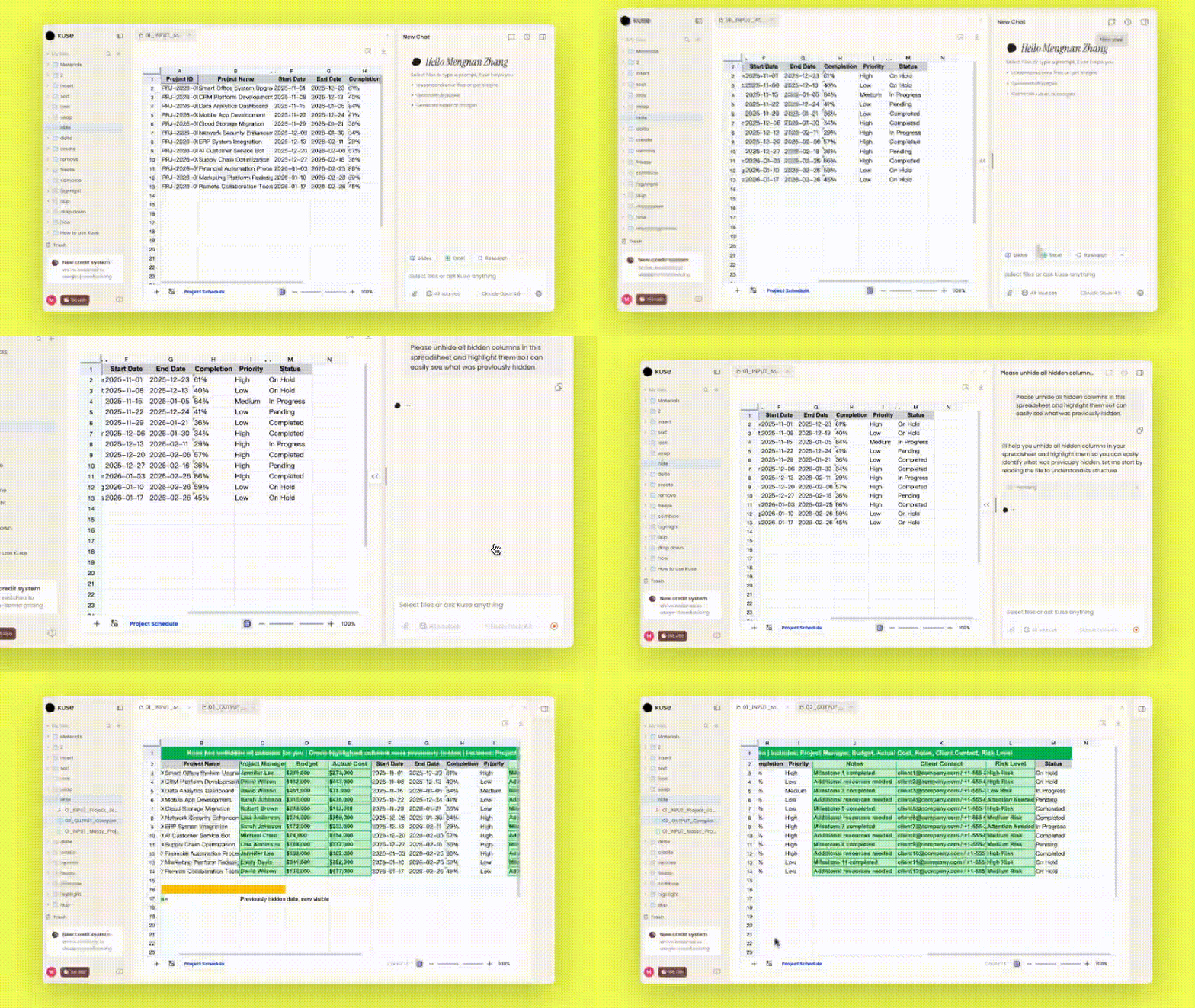
Kuse lets you unhide columns in Excel instantly by simply asking in plain language — no right-clicking, no selecting ranges, no guesswork about which columns are missing.
Unhiding columns in Excel traditionally requires you to manually select the columns surrounding the hidden ones, right-click, and choose "Unhide" from the context menu. If multiple columns are hidden across different parts of your spreadsheet, you may need to repeat this process several times. With Kuse, you can skip all of that. Just describe what you want — like "unhide all hidden columns" — and the AI handles the rest automatically. This is especially helpful when working with large or unfamiliar spreadsheets where you are not sure which columns have been hidden.
What does unhiding columns in Excel mean?
Unhiding columns in Excel means making previously hidden columns visible again in your worksheet. When a column is hidden, it is not deleted — the data is still there, but the column is collapsed so it takes up no visible space. You might notice hidden columns when column letters skip, for example jumping from column B directly to column E.
Columns get hidden for many reasons. Someone might hide them to simplify a printed report, to reduce visual clutter while working on specific data, or to protect sensitive information from casual viewing. In shared workbooks, it is common to find columns hidden by a previous user without any clear indication of what data they contain.
Knowing how to unhide columns matters because hidden data can cause confusion. Formulas might reference cells in hidden columns, charts might pull from data you cannot see, and totals might include values that appear to be missing. Restoring visibility to these columns ensures you have the full picture of your spreadsheet data.
How to unhide all rows in Excel
Before diving into columns specifically, it is worth understanding the general approach Excel uses for hiding and unhiding, since the process for rows is nearly identical. To unhide all rows in Excel, you first need to select the entire worksheet by clicking the small triangle at the intersection of the row numbers and column letters, or by pressing Ctrl+A. Then right-click on any row number and choose "Unhide" from the context menu.
For unhiding specific rows, you need to select the rows on either side of the hidden ones. For example, if row 5 is hidden, you would select rows 4 and 6, right-click, and choose "Unhide." This same logic applies to columns — select the columns flanking the hidden ones, right-click, and select "Unhide."
The manual process becomes tedious when multiple rows or columns are hidden in different places throughout a large worksheet. You have to identify each hidden section, select the surrounding rows or columns, and repeat the unhide action. There is also the issue of column A or row 1 being hidden, which requires a slightly different technique — you need to use the Name Box to navigate to cell A1, then use the Format menu under the Home tab to unhide. These extra steps add up and increase the chance of missing something.
A faster way to unhide columns in Excel with Kuse
Instead of navigating menus and selecting ranges manually, Kuse lets you unhide columns using natural language. You simply type a request like "unhide all hidden columns" or "show columns C through F" and the action is performed immediately. There is no need to figure out which columns are hidden first — Kuse detects them and makes them visible.
This approach is particularly valuable when dealing with large datasets. In spreadsheets with dozens or hundreds of columns, manually identifying and unhiding each hidden column is time-consuming and error-prone. Kuse scans the entire worksheet structure and restores hidden columns in one step, regardless of how many are hidden or where they are located.
You can also be more specific with your instructions. For example, you might say "unhide only columns that contain sales data" or "show all columns between D and M." This level of control through plain language removes the guesswork and makes spreadsheet management faster, especially for users who do not work in Excel every day.
More: how to unhide columns in Excel
There are a few additional methods and edge cases worth knowing when it comes to unhiding columns in Excel. One common issue is unhiding column A, which cannot be done with the standard right-click method since there is no column to the left of it to select. The traditional workaround is to click on the Name Box (the small field to the left of the formula bar), type "A1," press Enter, then go to Home > Format > Hide & Unhide > Unhide Columns.
Another approach is to use the "Go To" dialog. Press Ctrl+G or F5, type the range of the hidden column (such as A:A), and click OK. This selects the hidden column, after which you can right-click and choose "Unhide." In newer versions of Excel, you can also double-click on the thin line that appears between column headers where a column is hidden, though this requires precise mouse positioning.
With Kuse, none of these workarounds are necessary. Whether it is column A, a single column in the middle of your sheet, or multiple non-adjacent hidden columns, you can unhide them all with a single natural language command. This eliminates the need to remember different techniques for different situations and makes the process consistent every time.

FAQs
To unhide all columns at once, select the entire worksheet by pressing Ctrl+A, then right-click on any column header and choose "Unhide." This reveals every hidden column in the sheet. Alternatively, you can use Kuse to unhide all columns instantly by typing a simple request like "unhide all hidden columns" without needing to select anything manually.
Yes, unhiding columns does not require any formulas. The standard method involves selecting adjacent columns, right-clicking, and choosing "Unhide." However, even this can feel cumbersome when multiple columns are hidden in different locations. Kuse simplifies this further — you just describe what you want in plain language, and the columns are restored automatically without any manual selection or menu navigation.
Yes, both the manual method and AI-based tools work on large spreadsheets. However, manually unhiding columns across a worksheet with hundreds of columns is slow and easy to miss some. Kuse handles large datasets efficiently by scanning the entire worksheet and unhiding all hidden columns in one step, regardless of how many there are or where they are located.
No, unhiding columns does not alter any data or formulas. The data in hidden columns is always preserved — hiding only changes visibility, not content. When you unhide columns, everything appears exactly as it was before it was hidden. Kuse follows this same principle, restoring column visibility without modifying any cell values, formatting, or formula references in your spreadsheet.