How to Find Duplicates in Excel: A Simple Step-by-Step Guide
Learn how to find duplicates in Excel using conditional formatting, formulas, or AI. Spot repeated data in seconds without complex setup.
Similar Cases
.gif)

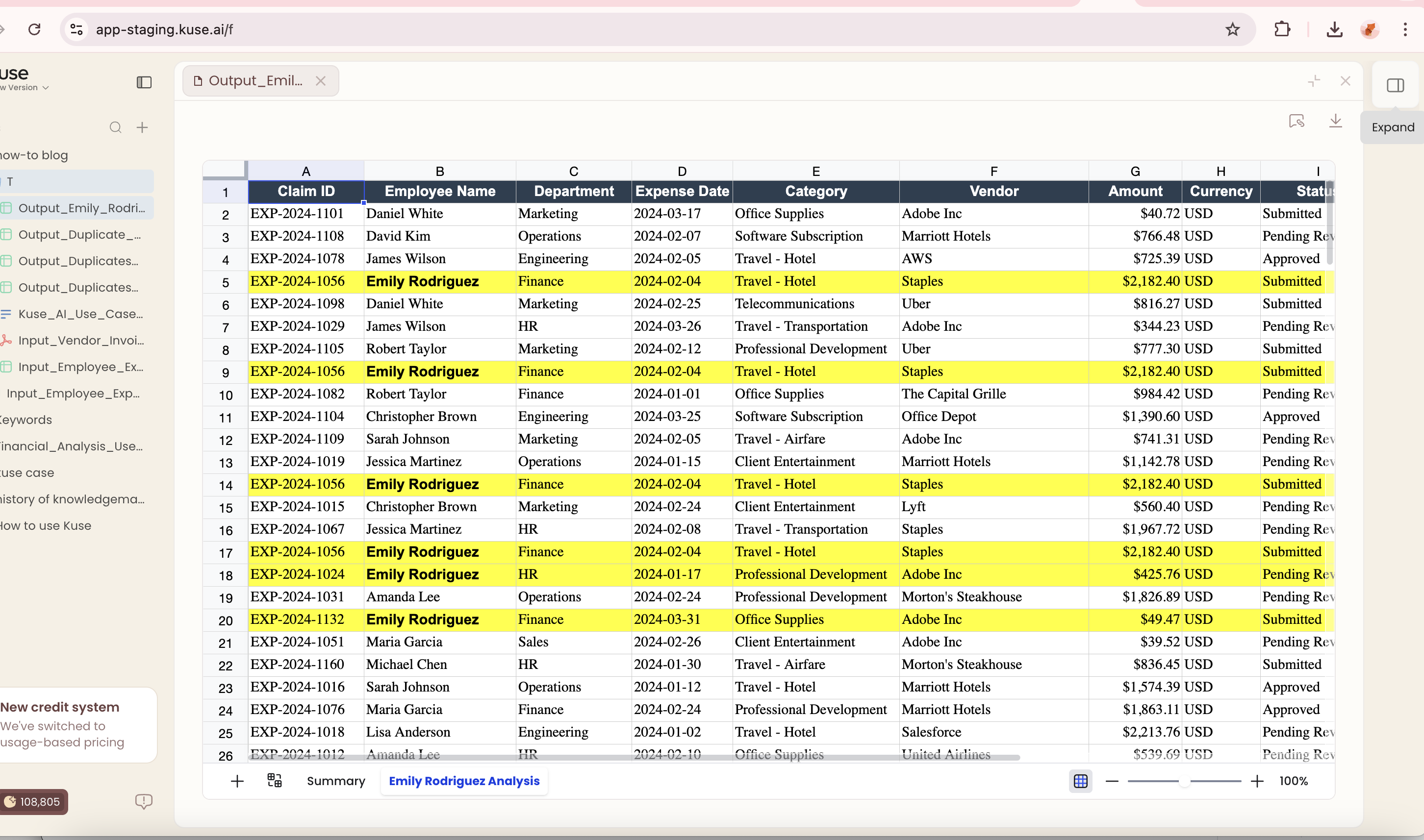
Kuse automatically scans your spreadsheet and highlights duplicate values across any column or row — just describe what you need in plain language.

Finding duplicates in Excel has traditionally required navigating through conditional formatting rules, writing COUNTIF formulas, or using the Remove Duplicates feature buried in the Data tab. Each method has its own set of steps and limitations, especially when dealing with partial matches or duplicates spread across multiple columns. With an AI-powered spreadsheet tool like Kuse, you can skip the manual setup entirely. Instead of remembering formula syntax or configuring highlight rules, you simply type what you are looking for — such as "find all duplicate emails in column B" — and get results instantly.
What Does Finding Duplicates in Excel Mean?
Finding duplicates in a spreadsheet means identifying cells, rows, or entries that contain the same value more than once within a given range. This is one of the most common data cleaning tasks in Excel, and it comes up in nearly every workflow that involves imported or manually entered data.
For example, a sales team might import a customer list from a CRM and discover that the same contact appears three times with slightly different spellings. An HR department might need to check whether employee IDs have been accidentally entered twice. A marketing team could be merging email lists from different campaigns and needs to ensure no subscriber receives the same message twice.
Duplicates cause problems because they distort analysis, inflate counts, and lead to wasted effort. A report that counts revenue per customer will overstate totals if the same customer appears multiple times. Identifying and handling these repeated entries is a foundational step before any meaningful analysis can happen.
How to Identify Duplicates in Excel
The most common traditional method is conditional formatting. You select your data range, go to Home, click Conditional Formatting, choose Highlight Cell Rules, then select Duplicate Values. Excel will color all cells that appear more than once in the selected range. This is quick for single-column checks but does not help when you need to find duplicates based on a combination of columns.
For more control, many users turn to the COUNTIF formula. By entering something like =COUNTIF(A:A, A2)>1 in a helper column, you can flag every row where the value in column A appears more than once. This works well, but it requires you to understand the formula syntax, apply it correctly, and then filter or sort the results manually. For beginners, even a small syntax error can produce misleading results.
Another option is the Remove Duplicates tool under the Data tab. This tool identifies and deletes duplicate rows, but it removes data permanently in one click — which can be risky if you have not saved a backup. It also does not let you review which entries are duplicates before they are deleted, making it a blunt instrument for a task that often needs precision.
All of these methods share a common limitation: they require you to know exactly which tool to use, where to find it, and how to configure it for your specific data layout. When datasets grow into thousands of rows or involve multiple matching criteria, the manual approach becomes time-consuming and error-prone.
A Faster Way to Find Duplicates with Kuse
Kuse lets you find duplicates by simply describing what you want in natural language. Instead of building formulas or navigating menus, you type a request like "highlight duplicate names in column A" or "show me rows where the email and phone number are both repeated." The AI interprets your intent and processes the entire dataset in seconds.
This approach is especially useful when your duplicate criteria are not straightforward. For instance, you might need to find entries that share the same last name and city but have different first names — a task that would require nested formulas or advanced filtering in traditional Excel. With Kuse, you describe the logic in plain words, and the tool handles the rest.
Large datasets are where this difference becomes most obvious. Manually applying COUNTIF across 50,000 rows and then sorting the results takes real time and concentration. An AI-powered approach processes the same volume almost instantly, and you can refine your search with follow-up instructions without starting over. You can ask Kuse to count duplicates, group them, or flag only the second and subsequent occurrences — all through conversation.
More: How to Remove Duplicate Rows in Excel
Removing duplicate rows goes one step beyond finding them. Once you have identified which entries are repeated, the next action is usually to keep one instance and delete the rest. In Excel, the built-in Remove Duplicates feature handles this by letting you select which columns to compare. It then deletes entire rows where all selected column values match, keeping only the first occurrence.
The traditional risk with this approach is that it is irreversible once saved. If you accidentally include the wrong column in your comparison criteria, you may delete rows that were not actually duplicates. For this reason, experienced users always create a backup copy of the sheet before running Remove Duplicates. You also lose visibility into what was removed — Excel tells you how many duplicates were deleted but does not show you which specific rows were affected.
With Kuse, you can take a safer approach. You can first ask it to find and display all duplicate rows for your review. Once you confirm which entries should be removed, you can instruct it to delete the extras while preserving the original data. This two-step process — review first, then act — reduces the chance of accidental data loss and gives you a clear audit trail of what changed.

FAQs
The quickest manual method is using Conditional Formatting to highlight duplicate values in a selected range. This takes a few clicks and works well for single-column checks. For an even faster approach, Kuse lets you type a plain-English request like "find duplicates in column B" and highlights them instantly across your entire dataset.
Yes. Excel's built-in Conditional Formatting and Remove Duplicates features do not require any formulas. You can highlight or remove repeated values entirely through the ribbon menu. Alternatively, AI tools like Kuse let you find duplicates by describing what you need in plain language, so no formula knowledge is needed at all.
Yes, but performance varies by method. Conditional Formatting can slow down significantly on very large files, and COUNTIF formulas across tens of thousands of rows may cause noticeable lag. Kuse is designed to handle large datasets efficiently, processing duplicate checks across thousands of rows in seconds without requiring you to manage formula ranges manually.
This is a common concern and a valid one. Excel's Remove Duplicates feature deletes rows permanently in the current session, so always save a backup first. If you use Kuse, you can review all flagged duplicates before taking any action, which adds a safety layer. The key practice is to separate the finding step from the removing step so you can verify results before making changes.